> ## Documentation Index
> Fetch the complete documentation index at: https://moengage-analytics-query-api-docs.mintlify.site/llms.txt
> Use this file to discover all available pages before exploring further.
# Capillary
# Introduction
[Capillary](https://www.capillarytech.com/products/loyalty-program-software/) Intelligent Loyalty platform delivers a comprehensive approach to customer loyalty solutions. The platform provides complete online, in-store, and social media-based loyalty to engage customers and positions your brand for efficient customer engagement.
# MoEngage × Capillary
The MoEngage and Capillary integration enables you to send dynamic coupon codes and customer loyalty data such as points, loyalty levels, and programs inside of MoEngage campaigns.
# Integration
**Prerequisites**
* You would need your Capillary [API keys](https://docs.capillarytech.com/docs/api-client) to use their APIs.
## Display customer rewards in MoEngage Campaigns
Using MoEngage's Content APIs, you can dynamically pull customers' reward points inside MoEngage campaigns for a more personalized experience.
### Step 1: Set up a MoEngage Content API
1. Navigate to **Settings** > **Advanced settings** > **Content API**. Click **+ Add content API** at the top right corner of the Content API screen. 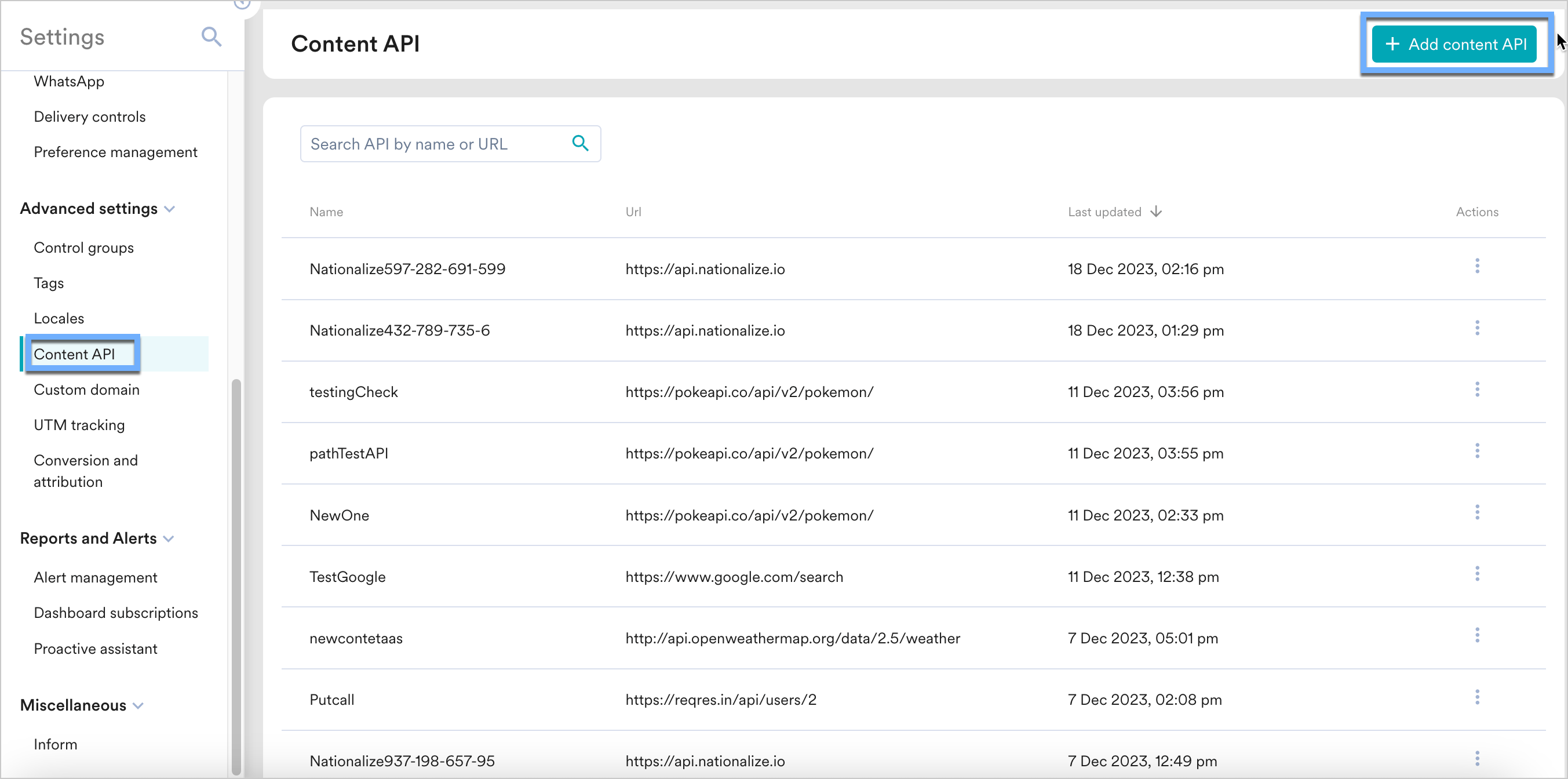 2. Add your Capillary API to the endpoint URL. Depending on your use case, the endpoint will change.
  To display your customers' rewards, use Capillary's [Get Loyalty Details API](https://docs.capillarytech.com/reference/get-loyalty-details-1).
While setting up your content API, insert the following URL:
`https://{host}/v2/customers/{{UserAttribute['capillary_id']}}/loyaltyDetails`
Your host will depend on the server to which the API calls are made, usually the cluster URL.
Under Headers, add the following:
* `Authorization`: Use an online tool to create your basic auth with `username` as a username and your MD5 hash of your `password` as a password:
To display your customers' rewards, use Capillary's [Get Loyalty Details API](https://docs.capillarytech.com/reference/get-loyalty-details-1).
While setting up your content API, insert the following URL:
`https://{host}/v2/customers/{{UserAttribute['capillary_id']}}/loyaltyDetails`
Your host will depend on the server to which the API calls are made, usually the cluster URL.
Under Headers, add the following:
* `Authorization`: Use an online tool to create your basic auth with `username` as a username and your MD5 hash of your `password` as a password:  In the above example, the value of this header would be `Basic dXNlcm5hbWU6Y0dGemMzZHZjbVE9`
* `Content-Type`: `application/json`
* `Accept`: `application/json`
3. Click on **Save** and then **Done** once you see a successful response.
You can also test your APIs. To test your APIs, from the Content API's action menu, click on "Test". You can test your API response and validate it.
### Step 2: Display your customers' loyalty points inside MoEngage campaigns
To use this API in your MoEngage campaigns,
1. On step 2 on your campaign creation, enter @.
2. In the pop up, you can select the Capillary Content API configured in Step 1.
3. You can use [MoEngage Templating Language](/user-guide/campaigns-and-channels/getting-started/message-personalization/jinja-templating-language) to parse through the API response and use the content in your campaigns.
In the above example, the value of this header would be `Basic dXNlcm5hbWU6Y0dGemMzZHZjbVE9`
* `Content-Type`: `application/json`
* `Accept`: `application/json`
3. Click on **Save** and then **Done** once you see a successful response.
You can also test your APIs. To test your APIs, from the Content API's action menu, click on "Test". You can test your API response and validate it.
### Step 2: Display your customers' loyalty points inside MoEngage campaigns
To use this API in your MoEngage campaigns,
1. On step 2 on your campaign creation, enter @.
2. In the pop up, you can select the Capillary Content API configured in Step 1.
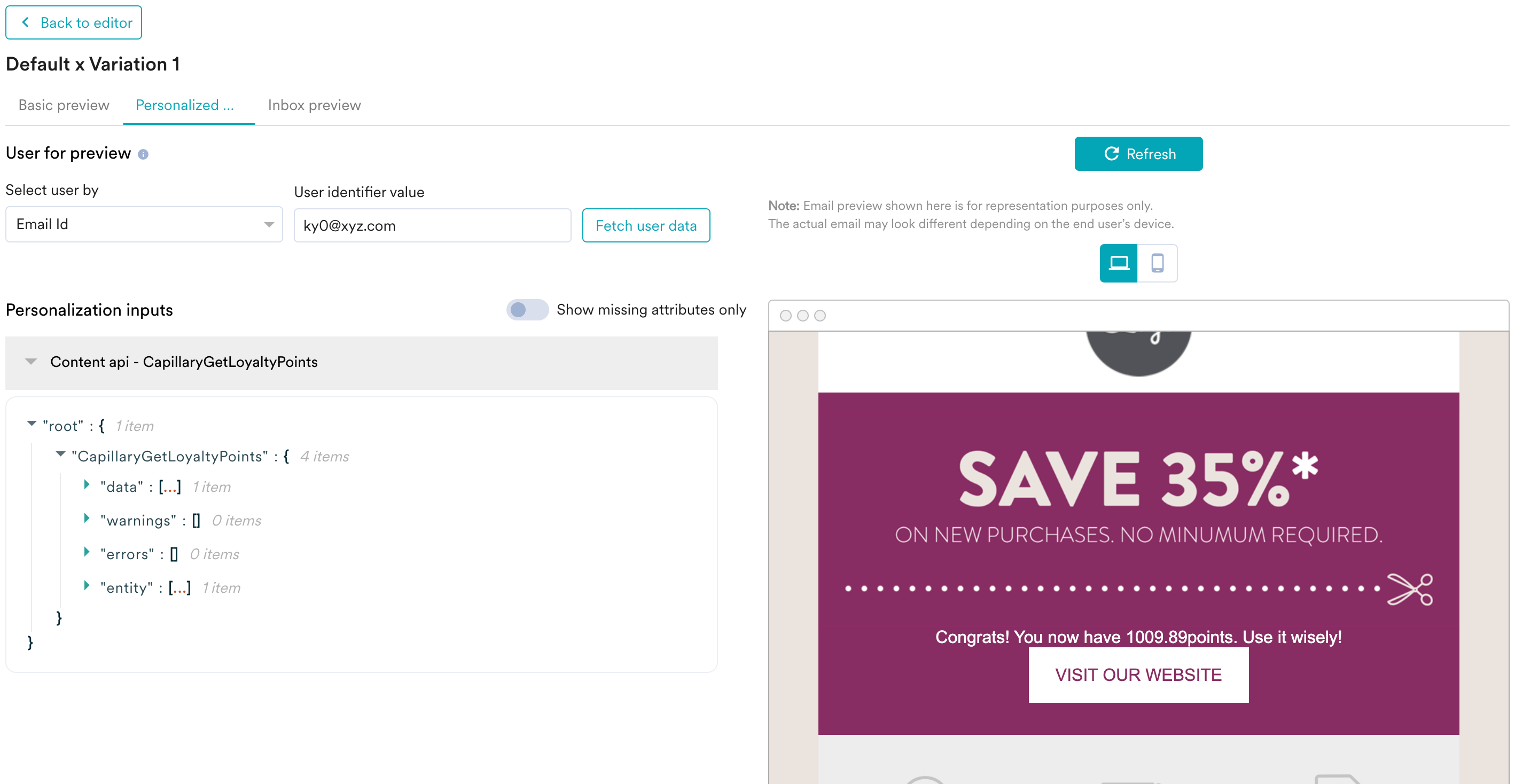
3. You can use [MoEngage Templating Language](/user-guide/campaigns-and-channels/getting-started/message-personalization/jinja-templating-language) to parse through the API response and use the content in your campaigns. 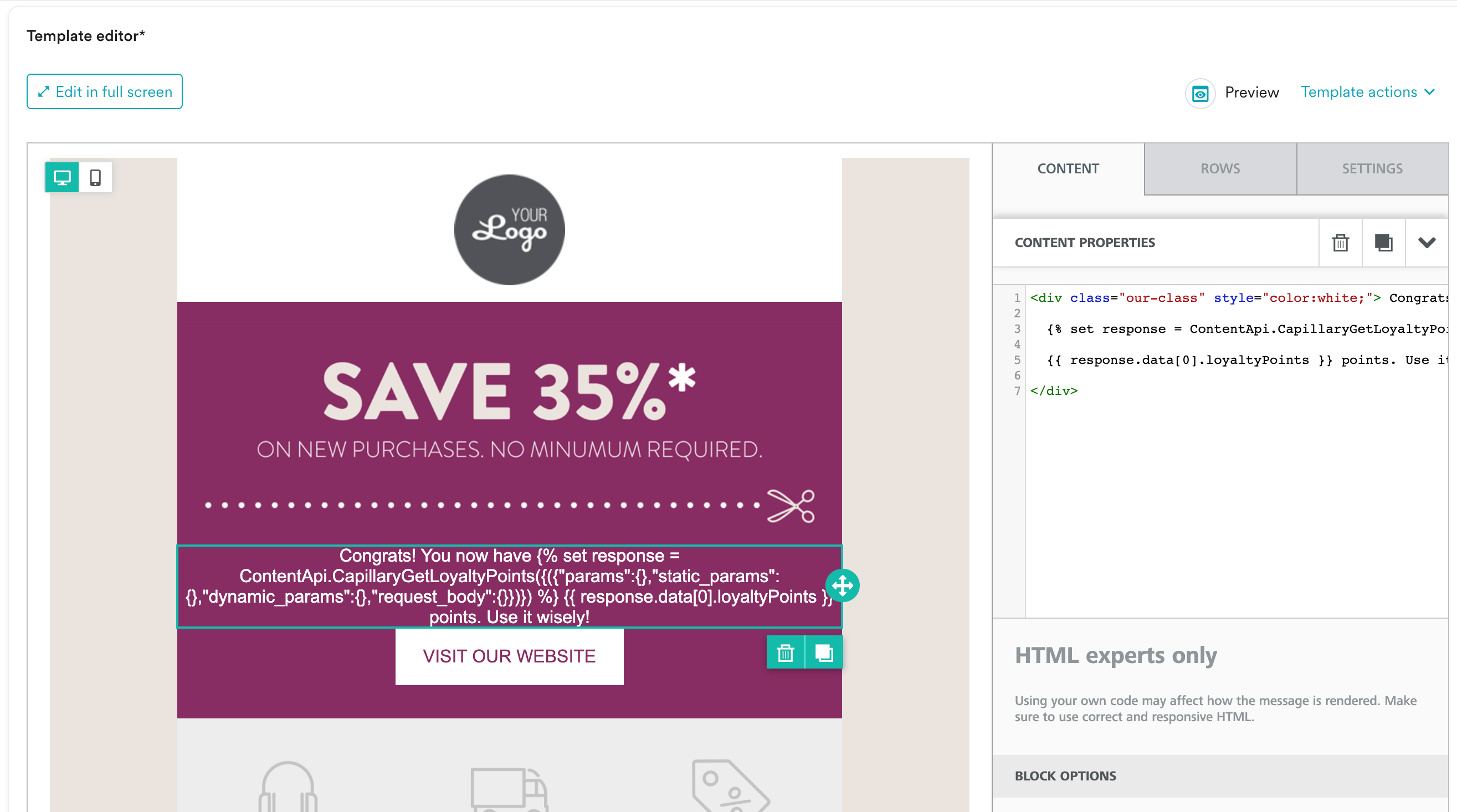 4. You can click on the Preview tab to view your campaign in real-time personalization:
  5. Once you are ready, click on **Publish** to send the campaign.