> ## Documentation Index
> Fetch the complete documentation index at: https://moengage-analytics-query-api-docs.mintlify.site/llms.txt
> Use this file to discover all available pages before exploring further.
# Trigger Card Deletion Through Custom Connector Campaigns
# Introduction
As marketers, we sometimes need to delete cards to remove irrelevant or outdated promotional content that no longer serves its purpose. We should ideally remove the card when its expiry condition is met. However, there may be scenarios where you need to delete the card for a user before its expiry, such as:
* **User availing the benefit**: The user has already utilized the card benefits, making the card irrelevant.
* **User feedback**: If users consistently ignore or negatively react to a specific card, deleting it can improve campaign performance.
* **Cleaning up clutter**: Removing redundant or similar cards helps present a more streamlined experience for users, allowing us to deliver focused messaging.
#### Advantages of triggering card deletion
* **Improved user experience**: Automating *Card Deletion* based on specific trigger conditions helps improve the user experience and ensures the relevance of campaigns.
* **Relevant information**: Removing cards after a user has taken a specific action or when they are no longer eligible for a promotion ensures that the user interface remains clean and focused on relevant information.
* **Reduced resource consumption**: By removing outdated cards, you can optimize system performance and save resources.
* **Increased efficiency**: Automated card deletion streamlines campaign management and reduces manual effort.
We will achieve this use case by [creating a Custom Connector campaign](/use-cases/cards/trigger-card-deletion-through-custom-connector-campaigns#create-a-custom-connector-campaign) that automatically deletes cards based on predefined trigger conditions.
You can also remove the card for the specific user manually using the [Delete Cards API](/api/cards/delete-cards-for-user).
# Expected Result
Cards will be deleted depending on the trigger conditions.
* A Card campaign promoting a product must be published. In this example, the product ID is 8137850880291.
* An event must be available in MoEngage to track the action of a user checking out products. In this example, we will use the event *Checkout Started*. To understand how to track events, refer to the [Developer Guide](/developer-guide/introduction).
* An event must be available in MoEngage to track the Card campaigns. In this example, we will use the events *Card Campaign Sent* and *Card Campaign Dismissed*. To understand how to track events, refer to the [Developer Guide](/developer-guide/introduction).
* The **Campaign ID** from the Card info page must be noted.
# Create a Custom Connector Campaign
In this section, we will create a Custom Connector campaign to delete a card automatically.
## Step 1: Target Users
1. On the left navigation menu in the MoEngage dashboard, click **Engage**, and then click **Campaigns**.
2. On the All campaigns page, click **+ Create campaign**.
3. Under **Connectors**, click **Custom** > **Event Triggered**. For more information, refer to [Event Triggered Campaigns](/user-guide/campaigns-and-channels/connectors/create/create-a-connector-campaign).  You are taken to the first step, **Target users**, of defining your campaign.
4. Define your campaign with a name and tags. Enter the following details:
* **Team**: Select a team if your organization has teams enabled for your account. For more information, refer to [Teams in MoEngage](/user-guide/settings/account/team-management/teams-in-moengage).
* **Campaign name**: Enter a name for the campaign. For example, *Delete Card API Connector*.
* **Campaign tags**: Select the required campaign tags.
You are taken to the first step, **Target users**, of defining your campaign.
4. Define your campaign with a name and tags. Enter the following details:
* **Team**: Select a team if your organization has teams enabled for your account. For more information, refer to [Teams in MoEngage](/user-guide/settings/account/team-management/teams-in-moengage).
* **Campaign name**: Enter a name for the campaign. For example, *Delete Card API Connector*.
* **Campaign tags**: Select the required campaign tags.  5. In the **Trigger criteria** section, define the trigger condition by performing the following steps:
1. In the **IF user** section, select *Checkout Started*.
2. Click **+ Attribute** and select *Product IDs* because they are unique attributes that can help you identify the card.
3. Select the (any of) is operator because you want an exact match.
4. In the **Select Option** list, select *8137850880291*.
5. In the **Trigger criteria** section, define the trigger condition by performing the following steps:
1. In the **IF user** section, select *Checkout Started*.
2. Click **+ Attribute** and select *Product IDs* because they are unique attributes that can help you identify the card.
3. Select the (any of) is operator because you want an exact match.
4. In the **Select Option** list, select *8137850880291*. 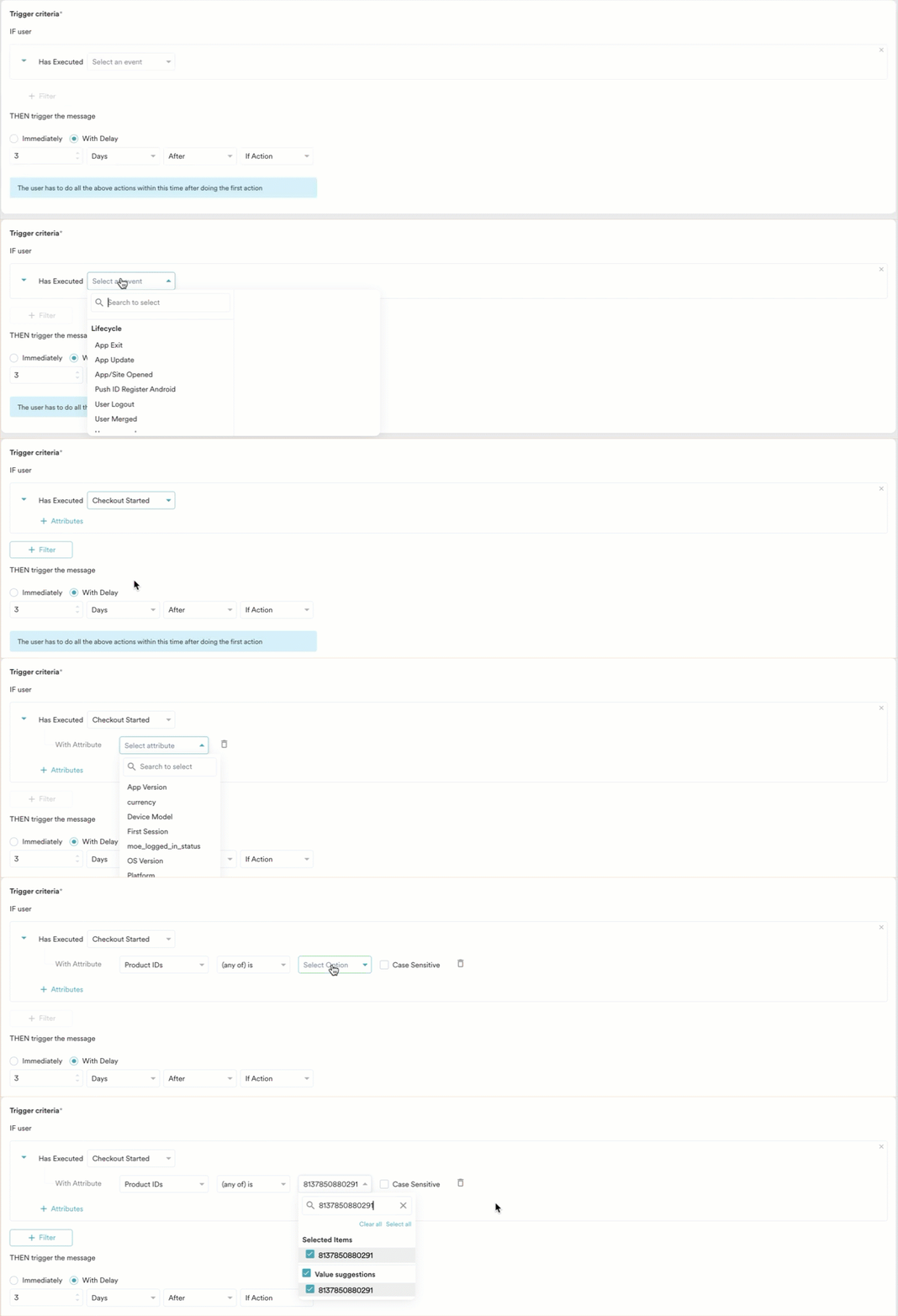 6. In the **Select audience** section, define the audience as users who have executed the *Card Campaign Sent* event at least once in the last 3 days with the noted *Campaign Id* as shown below:
 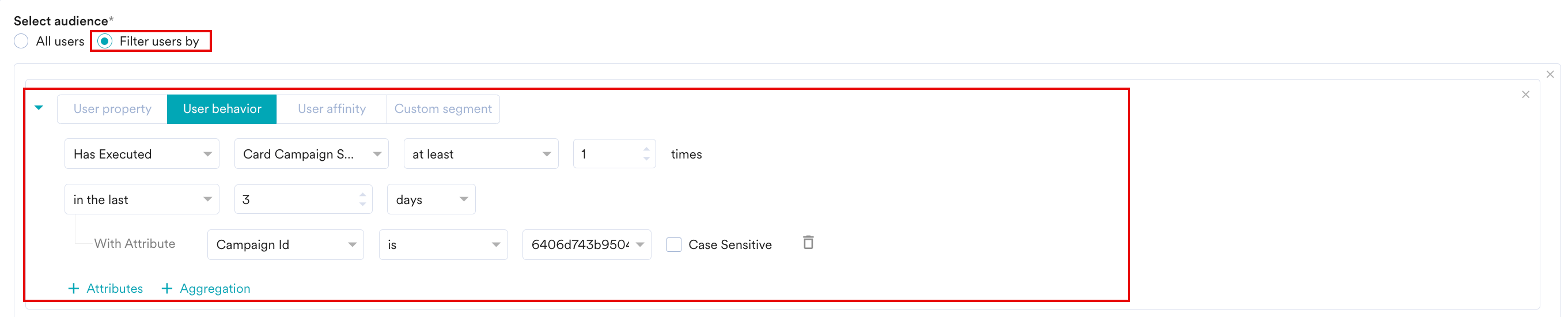 7. In the **Control groups** section, turn the **Global control group** toggle off.
  8. Click **Next** to move to the second step, **Content**, where you can define the content for your custom connector campaign.
## Step 2: Content
1. In the **Method** section, select the **DELETE** option to configure the API request.
8. Click **Next** to move to the second step, **Content**, where you can define the content for your custom connector campaign.
## Step 2: Content
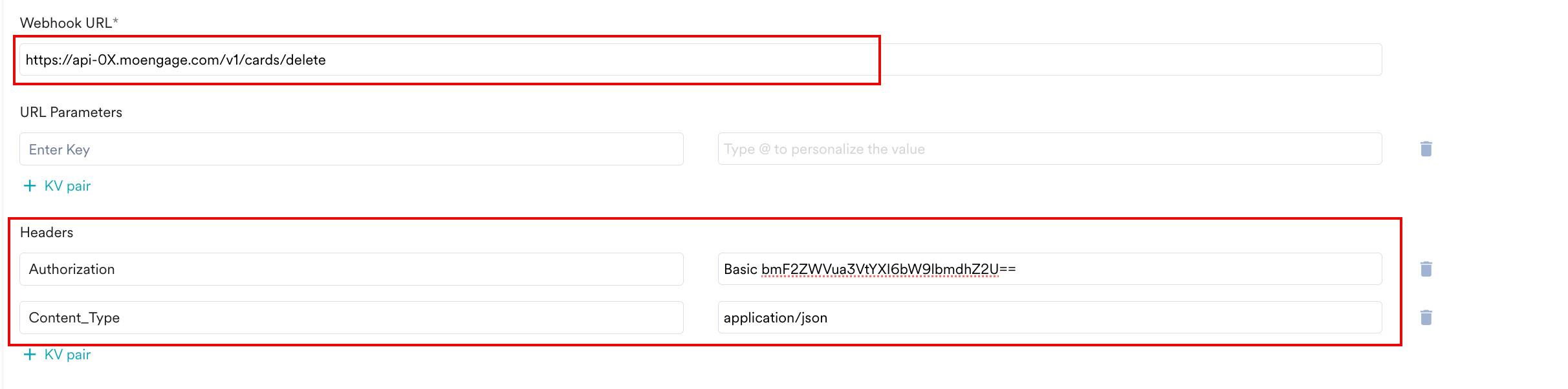
1. In the **Method** section, select the **DELETE** option to configure the API request.  2. In the **Webhook URL** box, type your URL. For example, [**https://api-0X.moengage.com/v1/cards/delete**](https://api-0X.moengage.com/v1/cards/delete).
Because each user is hosted on a different data center, refer to the [Data Centers in MoEngage](/user-guide/data/key-concepts/data-centers-in-moengage) article to find your data center number (value of **X**).
3. Under **Headers**, type key names and their values as shown in the following table:
| Key | Sample Values |
| ------------------------------------------------------------------------------------------------------------------------------------------------------------------------------------------------------------------------------------------------------------------------------------------------------------------------------------------------------------------------------------------------------------------------------------------------------------------------------------------------------------------------------------------------------------------------------------------------------------------------------------------------------------------------------------------------------------------------------------------------------------------------------------------------------------------------------------------------------------------------------------------------------------------------------------------------------------------------------------------------------------------------------------------------------------------------------------------------------------------------------------------------------------------------------------------------------------------------------------------------------------------------------------------------------------------------------------------------------------------------------------------------------------------------------------------------------------------------------------------------------------------------------------------------------------ | ---------------------------------------------------------------- |
| Authorization | `{"Authorization": "Basic Base64_ENCODED_WORKSPACEID_APIKEY=="}` |
| Content\_Type | `{"Content_Type": "application/json"}` |
|
2. In the **Webhook URL** box, type your URL. For example, [**https://api-0X.moengage.com/v1/cards/delete**](https://api-0X.moengage.com/v1/cards/delete).
Because each user is hosted on a different data center, refer to the [Data Centers in MoEngage](/user-guide/data/key-concepts/data-centers-in-moengage) article to find your data center number (value of **X**).
3. Under **Headers**, type key names and their values as shown in the following table:
| Key | Sample Values |
| ------------------------------------------------------------------------------------------------------------------------------------------------------------------------------------------------------------------------------------------------------------------------------------------------------------------------------------------------------------------------------------------------------------------------------------------------------------------------------------------------------------------------------------------------------------------------------------------------------------------------------------------------------------------------------------------------------------------------------------------------------------------------------------------------------------------------------------------------------------------------------------------------------------------------------------------------------------------------------------------------------------------------------------------------------------------------------------------------------------------------------------------------------------------------------------------------------------------------------------------------------------------------------------------------------------------------------------------------------------------------------------------------------------------------------------------------------------------------------------------------------------------------------------------------------------ | ---------------------------------------------------------------- |
| Authorization | `{"Authorization": "Basic Base64_ENCODED_WORKSPACEID_APIKEY=="}` |
| Content\_Type | `{"Content_Type": "application/json"}` |
|  | |
| For more information on the authentication key to be used in this request, refer to [Delete Cards API](/api/cards/delete-cards-for-user). | |
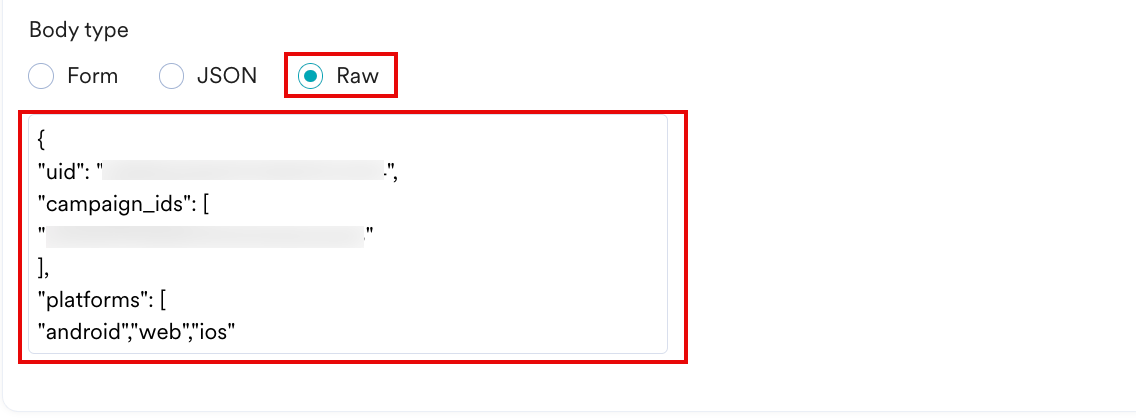
4. Select the **Body type** as **Raw**and then enter the JSON code in the input field as follows: JSON
```json wrap theme={null}
{
"uid": "{{UserAttribute['ID']}}",
"campaign_ids": [
"{{readable_campaign_id}}"
],
"platforms": [
"android","web","ios"
]
}
```
| |
| For more information on the authentication key to be used in this request, refer to [Delete Cards API](/api/cards/delete-cards-for-user). | |
4. Select the **Body type** as **Raw**and then enter the JSON code in the input field as follows: JSON
```json wrap theme={null}
{
"uid": "{{UserAttribute['ID']}}",
"campaign_ids": [
"{{readable_campaign_id}}"
],
"platforms": [
"android","web","ios"
]
}
```
 | Attribute | Description |
| ------------- | --------------------------------------------------------------------------------------------------------------------------------------------------------------------------------------------------------------------------------------------------------------------------------------------------------------------------------------------- |
| uid | Replace *ID* with the unique MoEngage Standard ID (Email ID Standard, Mobile Number Standard, or any unique identifier mapped to a MoEngage standard attribute) that identifies the user. The Delete API will use this identifier to delete the card for the right user. You can add this value by personalizing it to the **ID** attribute. |
| campaign\_ids | Replace *readable\_campaign\_id* with the previously noted *Campaign ID* of the card you wish to remove. For any additional configuration, refer to the [Delete Cards API](/api/cards/delete-cards-for-user) documentation. |
5. Click **Next** to move to the third step, **Schedule and goals**, where you can define your campaign's schedule and goals.
## Step 3: Schedule and Goals
1. In the **Send campaign** section, define when to start and end this campaign.
| Attribute | Description |
| ------------- | --------------------------------------------------------------------------------------------------------------------------------------------------------------------------------------------------------------------------------------------------------------------------------------------------------------------------------------------- |
| uid | Replace *ID* with the unique MoEngage Standard ID (Email ID Standard, Mobile Number Standard, or any unique identifier mapped to a MoEngage standard attribute) that identifies the user. The Delete API will use this identifier to delete the card for the right user. You can add this value by personalizing it to the **ID** attribute. |
| campaign\_ids | Replace *readable\_campaign\_id* with the previously noted *Campaign ID* of the card you wish to remove. For any additional configuration, refer to the [Delete Cards API](/api/cards/delete-cards-for-user) documentation. |
5. Click **Next** to move to the third step, **Schedule and goals**, where you can define your campaign's schedule and goals.
## Step 3: Schedule and Goals
1. In the **Send campaign** section, define when to start and end this campaign. 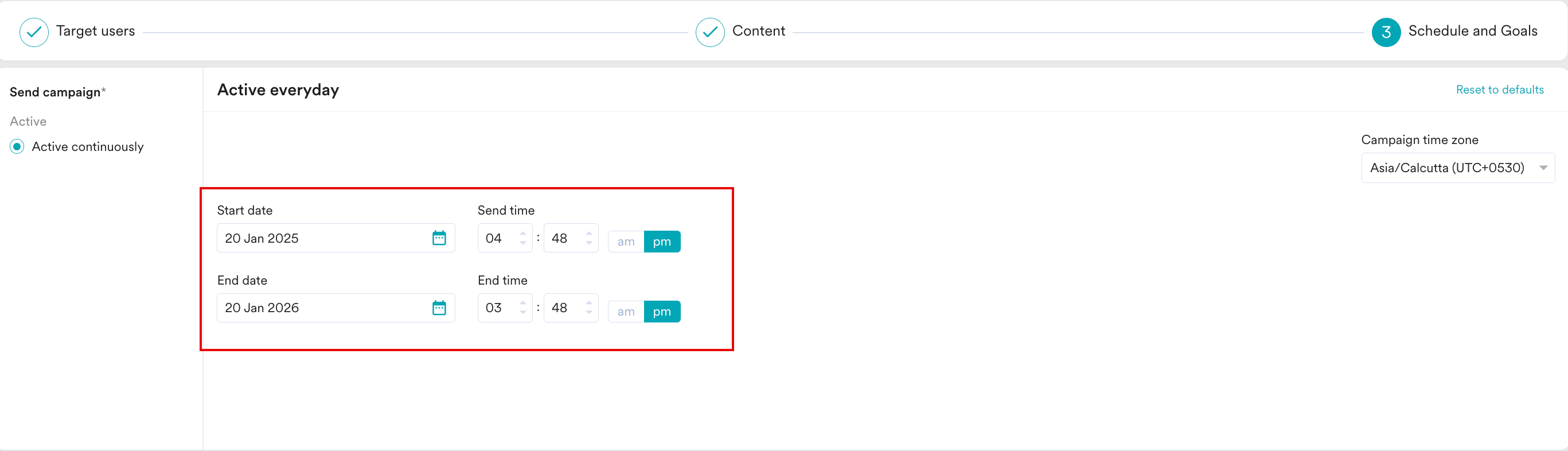 2. In the **Conversion goals** section, set the conversion goal as *Card Campaign Dismissed* with the attribute *Campaign ID* that you have identified before.
  3. In the **Delivery controls** section, define the settings based on your requirements.
4. Click **Publish**.
# Conclusion
In this use case, we created a Custom Connector campaign to delete a card automatically.
Now that we have created and published the card and its Delete Card API Connector campaign, the campaign will monitor users who meet the trigger condition and then request to delete the relevant card.
* If a card is available for a user and the delete API successfully deletes the card for them, you will see the status Card Campaign Dismissed in the user activity.
* For periodic campaigns, using the parent ID in the **Campaign ID** field of the body will delete all the child campaigns.
* It may take a few minutes for the delete request to be processed and the card changes to be reflected in the user's inbox.
3. In the **Delivery controls** section, define the settings based on your requirements.
4. Click **Publish**.
# Conclusion
In this use case, we created a Custom Connector campaign to delete a card automatically.
Now that we have created and published the card and its Delete Card API Connector campaign, the campaign will monitor users who meet the trigger condition and then request to delete the relevant card.
* If a card is available for a user and the delete API successfully deletes the card for them, you will see the status Card Campaign Dismissed in the user activity.
* For periodic campaigns, using the parent ID in the **Campaign ID** field of the body will delete all the child campaigns.
* It may take a few minutes for the delete request to be processed and the card changes to be reflected in the user's inbox.