> ## Documentation Index
> Fetch the complete documentation index at: https://moengage-analytics-query-api-docs.mintlify.site/llms.txt
> Use this file to discover all available pages before exploring further.
# How to Test a Notification Without User Details on Google Chrome?
> Test web push notifications in Google Chrome using push tokens when user details are unavailable. Retrieve token data to run test campaigns.
If you are not sending user details to MoEngage, to identify and target the user, it's hard to test a push notification before actually sending it. You can target a user with push token information. Perform the following steps to get a push token:
## Get a Push Token
1. Visit your HTTPS site on which you have subscribed for push notifications. In the case of an HTTP site, you must visit the actual HTTPS site under which you have subscribed.
2. In the website window, right-click the browser and go to **Inspect** -> **Application** -> **Local Storage**.
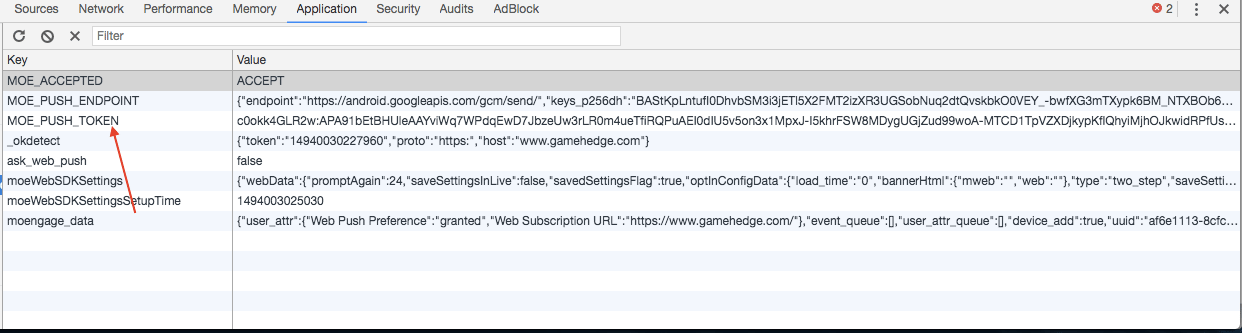
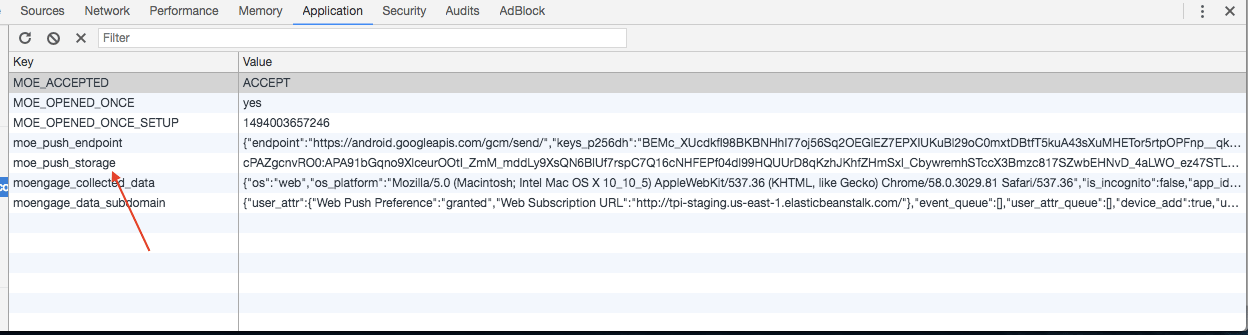
3. Click the domain that belongs to you. In the right pane, you will find the push token information under **moe\_push\_storage** or **MOE\_PUSH\_TOKEN**.
4. Double-click the value section of this data to copy it. The following images show what that information looks like.
 ## Test the Campaign
Now that you have a push token, you can find the test campaign section while creating the campaign.
1. Go to step 2 "Content" in the Push campaign.
2. In the **Test Campaign** section, from the **Select Option** drop-down list, select "Device push token".
3. In the **Type something here** field, paste the push token information you just copied above.
## Test the Campaign
Now that you have a push token, you can find the test campaign section while creating the campaign.
1. Go to step 2 "Content" in the Push campaign.
2. In the **Test Campaign** section, from the **Select Option** drop-down list, select "Device push token".
3. In the **Type something here** field, paste the push token information you just copied above.
 4. Click **Test** to target your browser with a push token.
If you cannot see a notification after following the steps above, contact your MoEngage Customer Success Manager (CSM) or the Support team.
4. Click **Test** to target your browser with a push token.
If you cannot see a notification after following the steps above, contact your MoEngage Customer Success Manager (CSM) or the Support team.