> ## Documentation Index
> Fetch the complete documentation index at: https://moengage-analytics-query-api-docs.mintlify.site/llms.txt
> Use this file to discover all available pages before exploring further.
# Using Recommendations in On-site Messaging
> Display product recommendations in on-site messages at key moments like exit intent or page visits to boost conversions within the user journey.
# Introduction
With the preset workflows of On-site messages you can suggest products or items and automatically interact with users at various stages of their purchasing journey or when they show interest. These interaction points can include landing pages, pages visited, exit intent, and other parameters.
At MoEngage, creating an email campaign is a three-step process.
1. Target users
2. Content
3. Schedule and goals
You can personalize the campaign content with recommendations in the second step 'Content'. Let us create a recommendation based personalized OSM campaign.
Ensure that you have created the desired recommendations. You can use only active recommendations for campaign personalization. Learn how to [create and manage recommendations](/user-guide/content/recommendations).
# Create OSM campaigns with Recommendations
To create an OSM campaign with recommendations, perform the following steps:
1. On the sidebar menu in MoEngage, hover over the Engage menu item  . The **Engage** menu appears.
2. Click **+ New Campaign**.
. The **Engage** menu appears.
2. Click **+ New Campaign**. 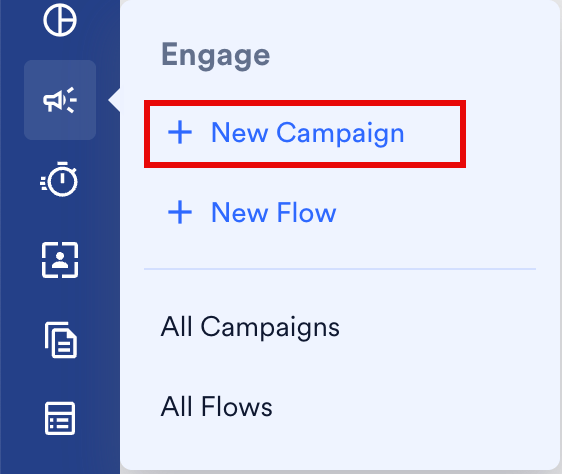 You can also click **All Campaigns** on the **Engage** menu and then click **+ Create campaign** on the All campaigns page.
3. On the **New Campaign** dialog box, under **INBOUND**, click **On-site**.
You can also click **All Campaigns** on the **Engage** menu and then click **+ Create campaign** on the All campaigns page.
3. On the **New Campaign** dialog box, under **INBOUND**, click **On-site**. 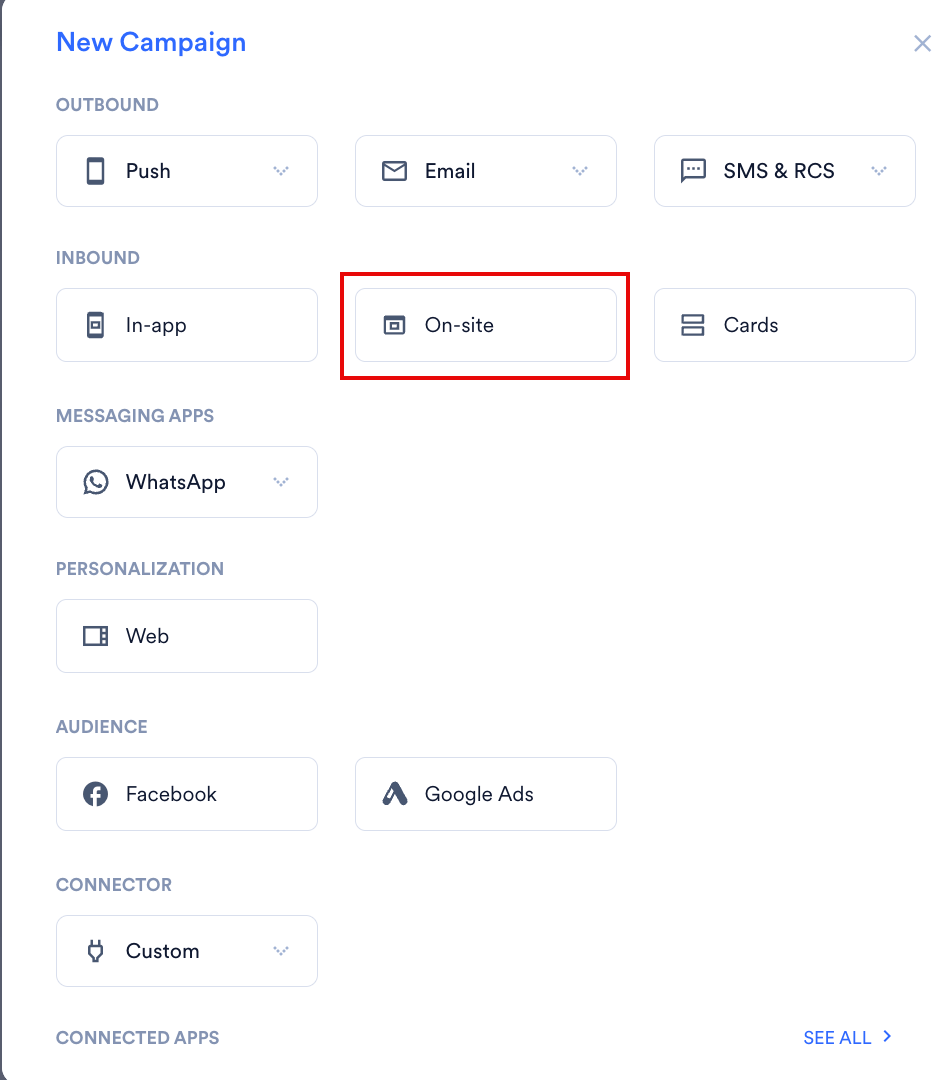 4. Enter the basic campaign details and define the audience in step 1 'Target users' and click **Next**.
5. In step 2, on the **Content** tab, select a template from the available options. For the defined scope of this article, let us select a nudge **template** of 'Text based CTA'.
4. Enter the basic campaign details and define the audience in step 1 'Target users' and click **Next**.
5. In step 2, on the **Content** tab, select a template from the available options. For the defined scope of this article, let us select a nudge **template** of 'Text based CTA'. 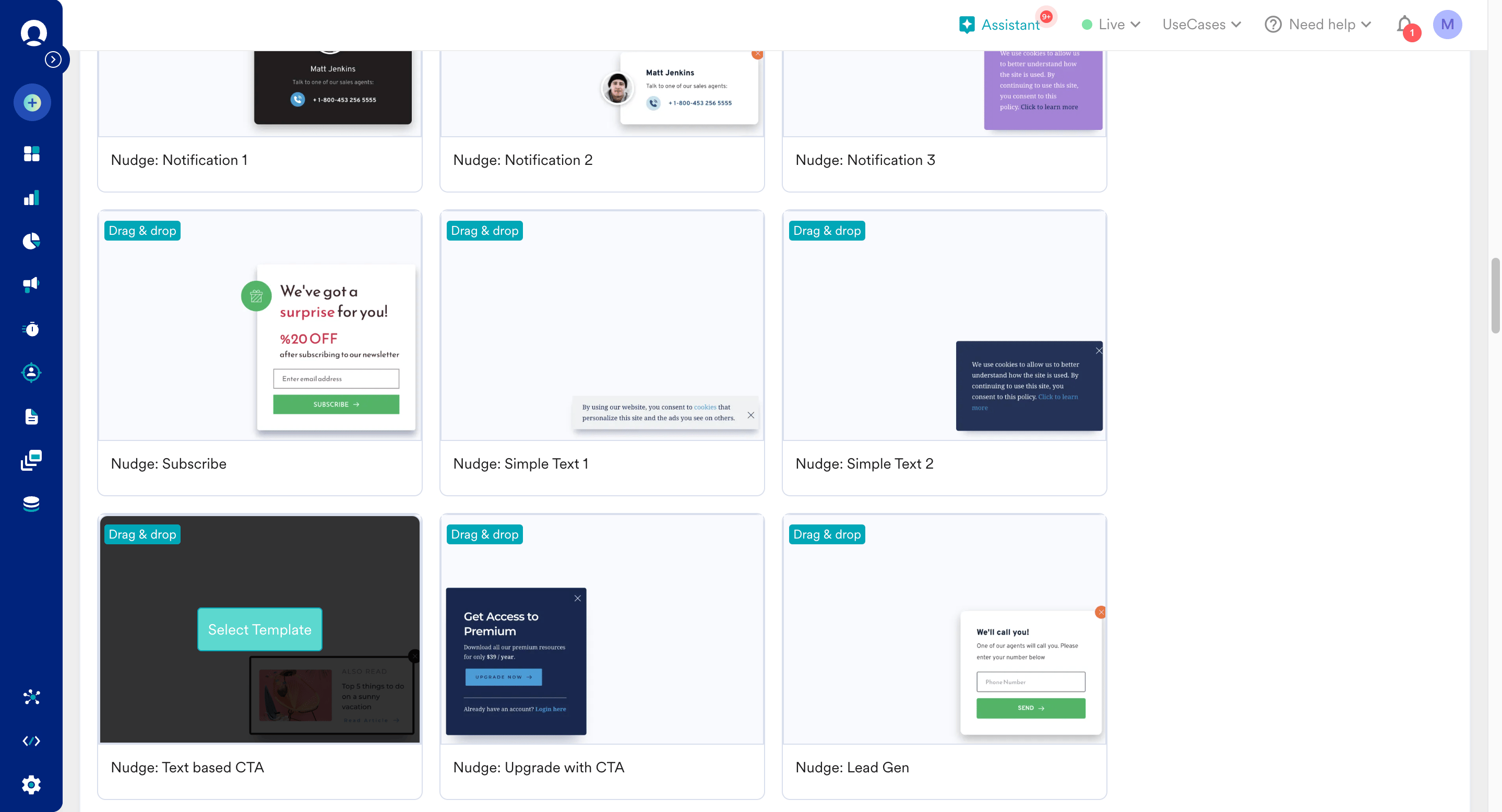 6. Let's remove the existing text OSM template and personalize the value with recommendation to feature item that have very limited stock available.
 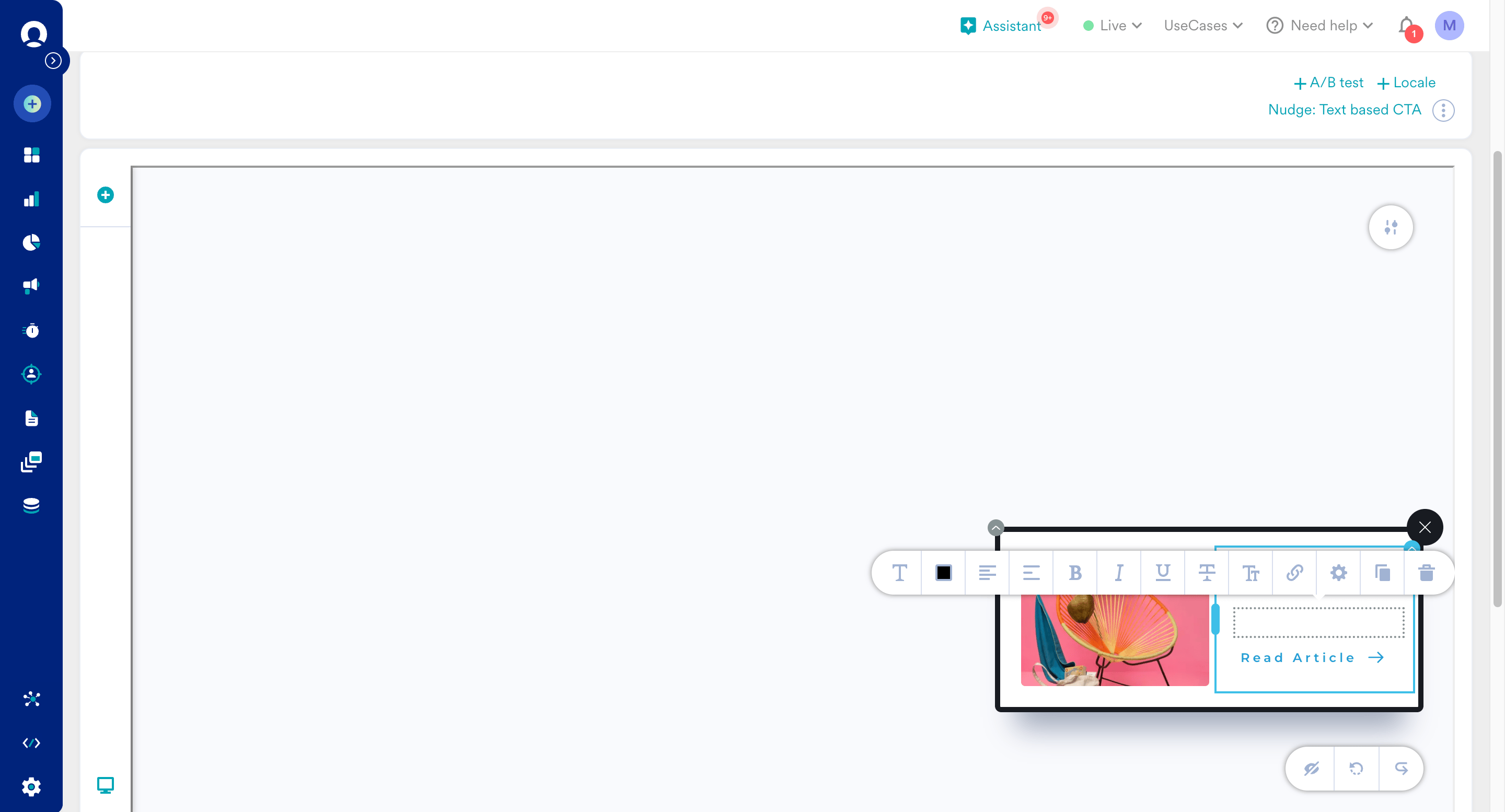 7. You can define change the background color or add a background image as suits your need.
8. On entering **'@'** in the text block, a personalization pop-up opens. Search and select the desired recommendation name under data personalization drop-down.
7. You can define change the background color or add a background image as suits your need.
8. On entering **'@'** in the text block, a personalization pop-up opens. Search and select the desired recommendation name under data personalization drop-down. 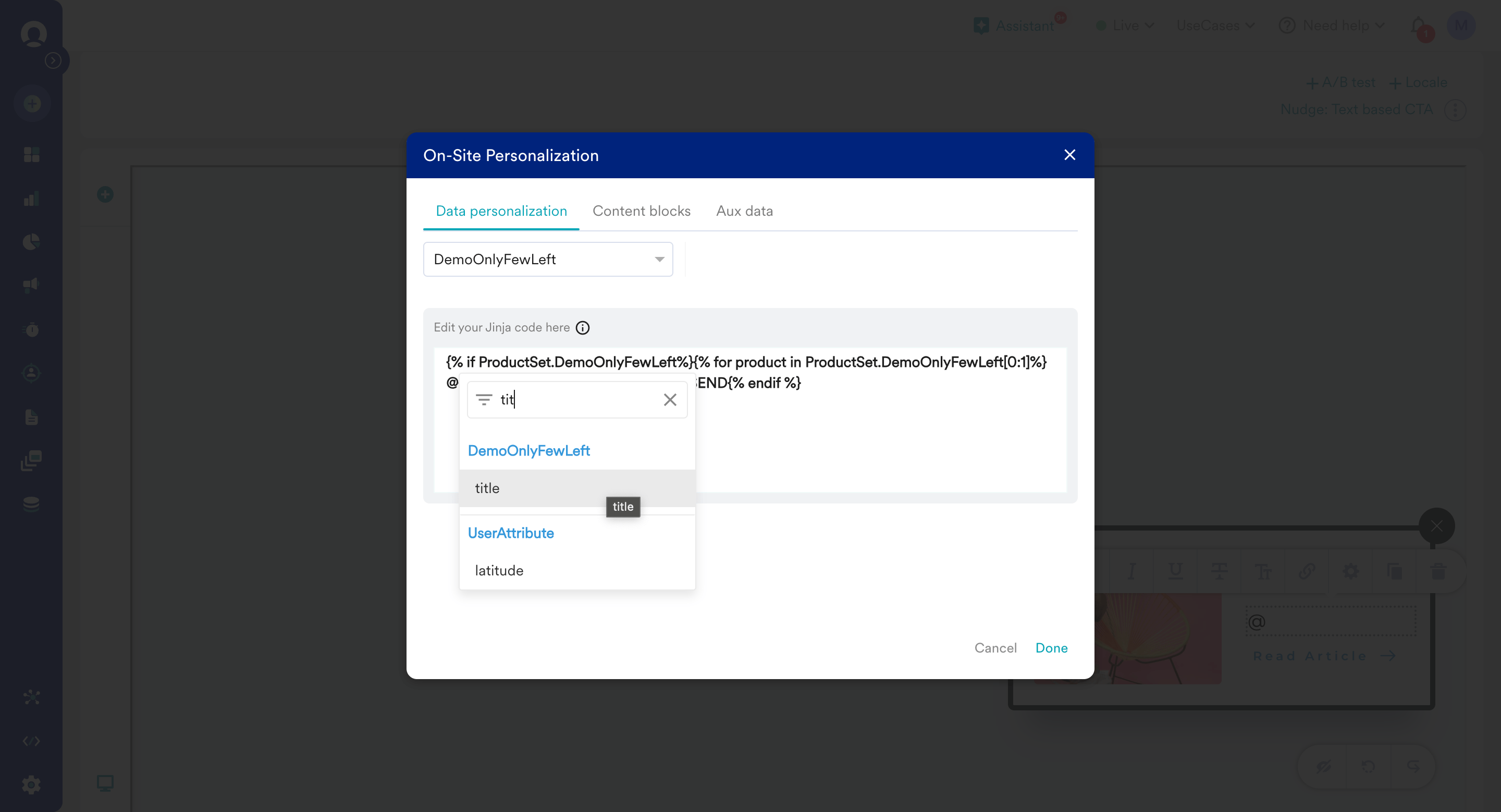 9. Once selected, you need to update the Jinja code inside the Jinja code block as following:
```jinja JINJA for item title theme={null}
{% if ProductSet.
DemoOnlyFewLeft
%}
{% for product in ProductSet.
DemoOnlyFewLeft
[0:1]%}
{{product.title}}
{% endfor %}
{% else %}
MOE_NOT_SEND
{% endif %}
```
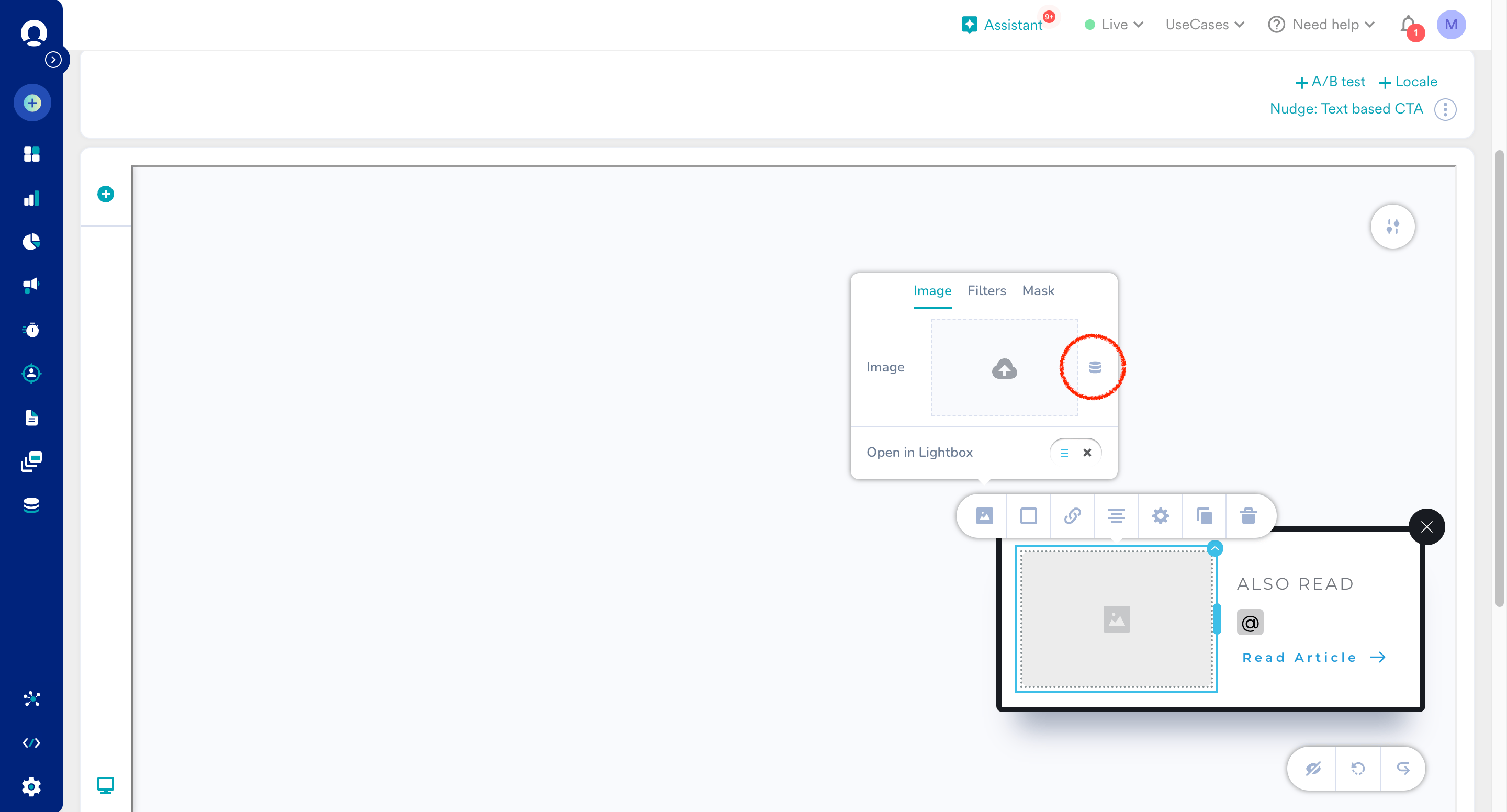
10. In a similar fashion, let us personalize with image link of recommendation item as following
```jinja JINJA for item image theme={null}
{% if ProductSet.
DemoOnlyFewLeft
%}
{% for product in ProductSet.
DemoOnlyFewLeft
[0:1]%}
{{product.image_link}}
{% endfor %}
{% else %}
MOE_NOT_SEND
{% endif %}
```
9. Once selected, you need to update the Jinja code inside the Jinja code block as following:
```jinja JINJA for item title theme={null}
{% if ProductSet.
DemoOnlyFewLeft
%}
{% for product in ProductSet.
DemoOnlyFewLeft
[0:1]%}
{{product.title}}
{% endfor %}
{% else %}
MOE_NOT_SEND
{% endif %}
```
10. In a similar fashion, let us personalize with image link of recommendation item as following
```jinja JINJA for item image theme={null}
{% if ProductSet.
DemoOnlyFewLeft
%}
{% for product in ProductSet.
DemoOnlyFewLeft
[0:1]%}
{{product.image_link}}
{% endfor %}
{% else %}
MOE_NOT_SEND
{% endif %}
```
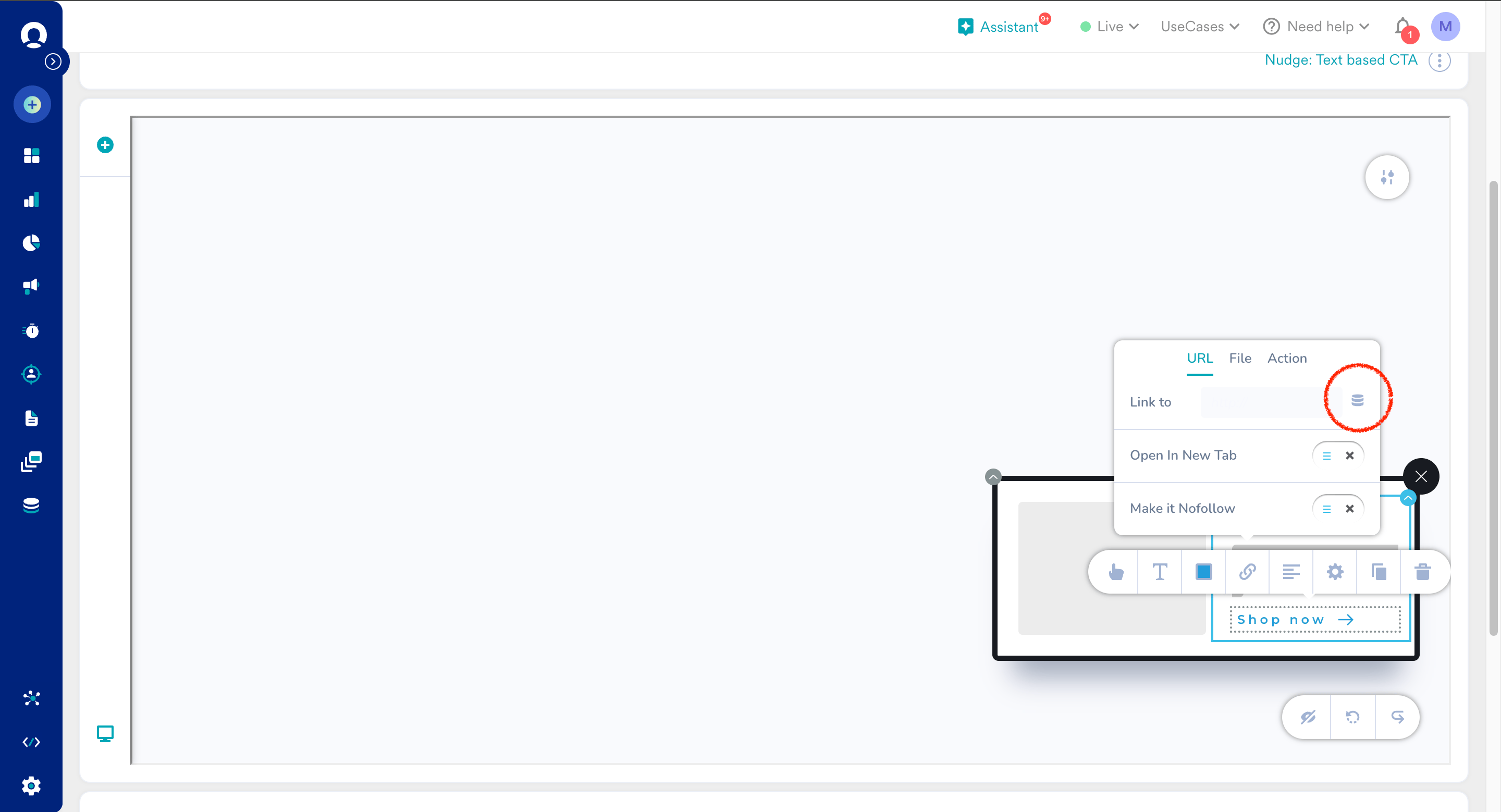
 11. You may also want to personalize with web page link for CTA as following
```jinja JINJA for item image theme={null}
{% if ProductSet.
DemoOnlyFewLeft
%}
{% for product in ProductSet.
DemoOnlyFewLeft
[0:1]%}
{{product.link}}
{% endfor %}
{% else %}
MOE_NOT_SEND
{% endif %}
```
11. You may also want to personalize with web page link for CTA as following
```jinja JINJA for item image theme={null}
{% if ProductSet.
DemoOnlyFewLeft
%}
{% for product in ProductSet.
DemoOnlyFewLeft
[0:1]%}
{{product.link}}
{% endfor %}
{% else %}
MOE_NOT_SEND
{% endif %}
```
 12. We encourage you to preview the recommendations delivery in OSM by testing the campaign before publishing. Enter the page URL under test campaign input and click Test.
 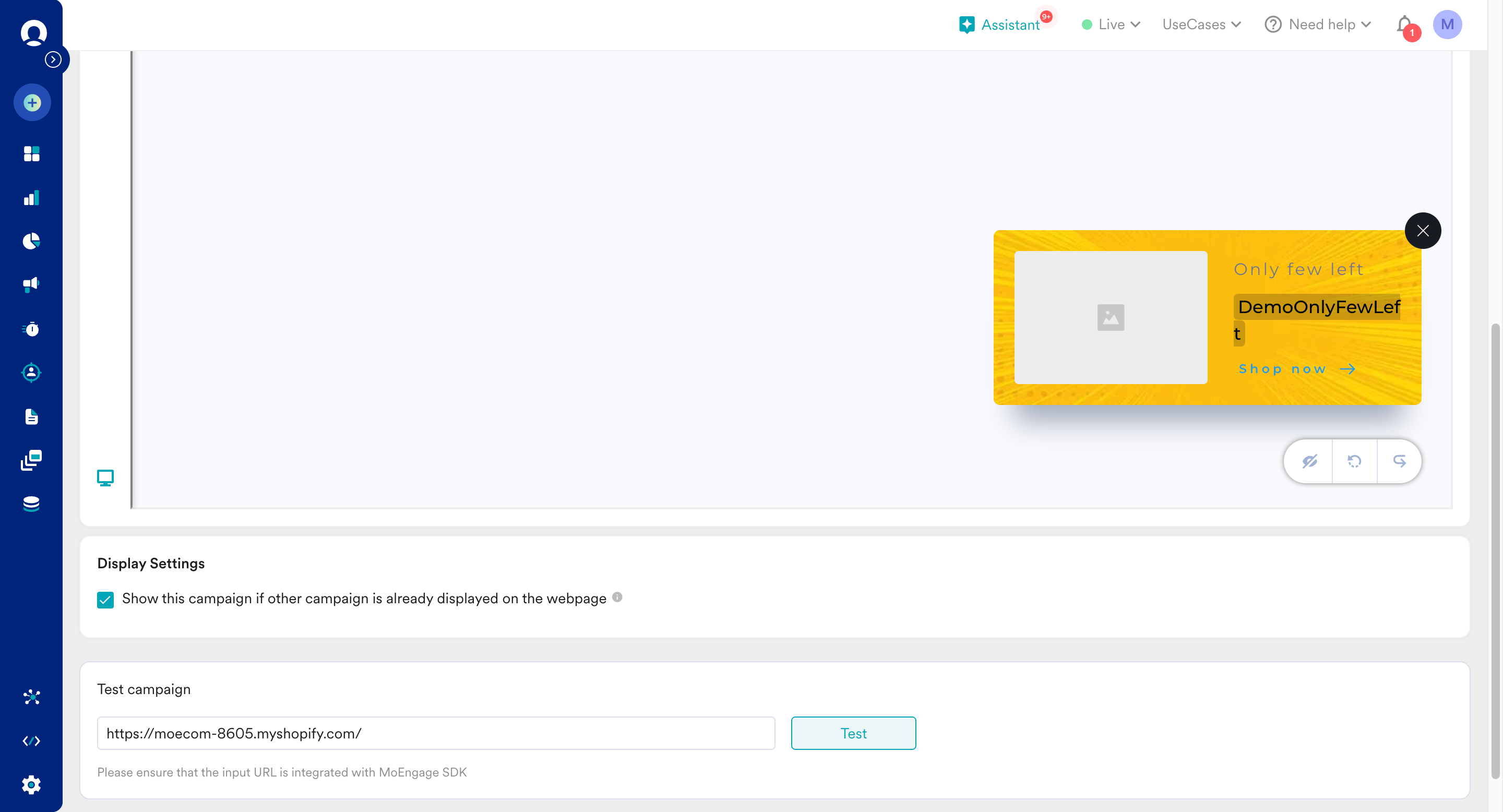 13. You will be able to preview the test results as following.
 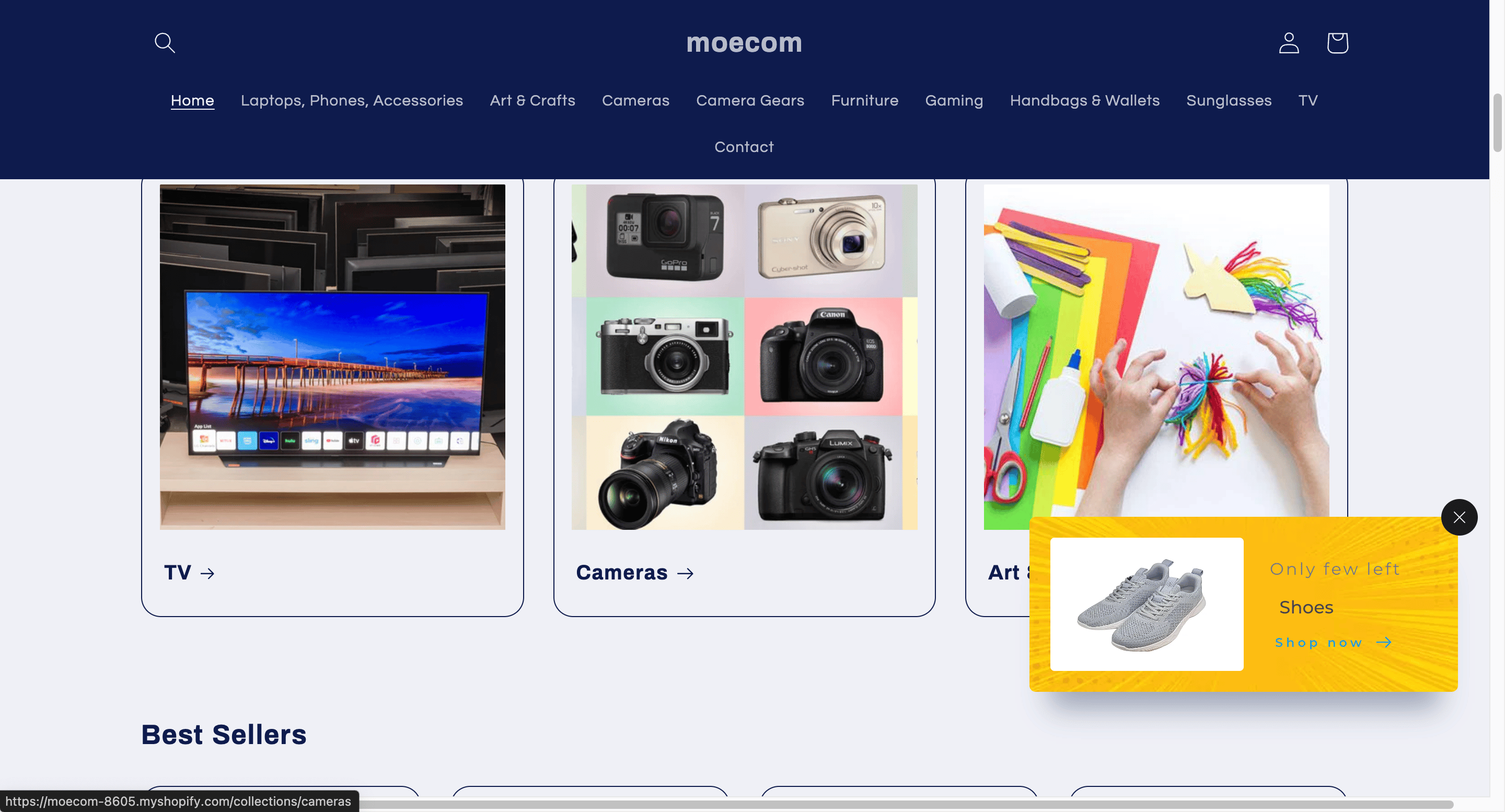 14. After you complete the content setup with recommendations, click **Next** at the bottom and move to 'Schedule and Goals', which is the step 3 of campaign setup.
15. Set up the appropriate schedule and delivery controls and publish the campaign.
14. After you complete the content setup with recommendations, click **Next** at the bottom and move to 'Schedule and Goals', which is the step 3 of campaign setup.
15. Set up the appropriate schedule and delivery controls and publish the campaign.